
All-in-One POS & Inventory Software for Any Business
Agnitech is a powerful, POS software and inventory management system designed for modern businesses that need speed, accuracy, and scalability. Our platform supports restaurants, retail stores, salons, gas stations, wholesale distributors, mobile shops, and rental businesses with one unified solution. Whether you are looking for a point of sale system, inventory tracking software, or a complete business management platform, Agnitech helps you streamline operations, reduce errors, and increase profitability.
Why Businesses Choose Agnitech POS Software
Agnitech is trusted by thousands of businesses because it combines ease of use with enterprise-level functionality. Unlike traditional POS systems, Agnitech integrates sales, inventory, customer management, reporting, and employee tracking into a single platform.
- All-in-One POS Solution: Manage sales, inventory, and customers from one system.
- Real-Time Inventory Tracking: Prevent stock shortages and overstocking with live updates.
- Industry-Specific Tools: Tailored modules for retail, restaurants, salons, gas stations, and more.
- Fast Checkout System: Speed up transactions with an intuitive POS interface.
- Cloud-Ready Architecture: Access your business data anytime, anywhere.
- Advanced Reporting: Make data-driven decisions using real-time analytics.



Frequently Asked Questions (POS Software & Inventory System)
What is POS software?
POS (Point of Sale) software is a digital system that allows businesses to process sales transactions, track inventory, and manage customers. Agnitech POS software provides a complete business management solution.
Does Agnitech support inventory management?
Yes. Agnitech includes advanced inventory management software features such as stock tracking, low-stock alerts, barcode scanning, and supplier management.
Is Agnitech suitable for small businesses?
Absolutely. Agnitech is designed for both small businesses and large enterprises. It scales easily as your business grows.
Can I use Agnitech for my restaurant or retail store?
Yes. Agnitech offers industry-specific POS solutions for restaurants, retail stores, salons, gas stations, mobile shops, wholesale businesses, and rental services.
Is there a free trial available?
Yes. Agnitech offers a 60-day free trial so businesses can test the full POS and inventory system before purchasing.
With built-in tools for barcode scanning, sales tracking, inventory control, CRM, and financial reporting, Agnitech helps businesses replace multiple disconnected systems with one unified platform.
Built for scalability, the system supports small businesses as well as multi-location operations, providing real-time data access and operational insights to support growth and decision-making.
Salon & Spa Scheduling Software
Our software is free to download, and can be used free with no obligation for 60 days. After the 60-day trial period, you will be locked out of using the software unless you purchase a license. Go ahead and download it now, you have nothing to lose!
Download a FREE Trial
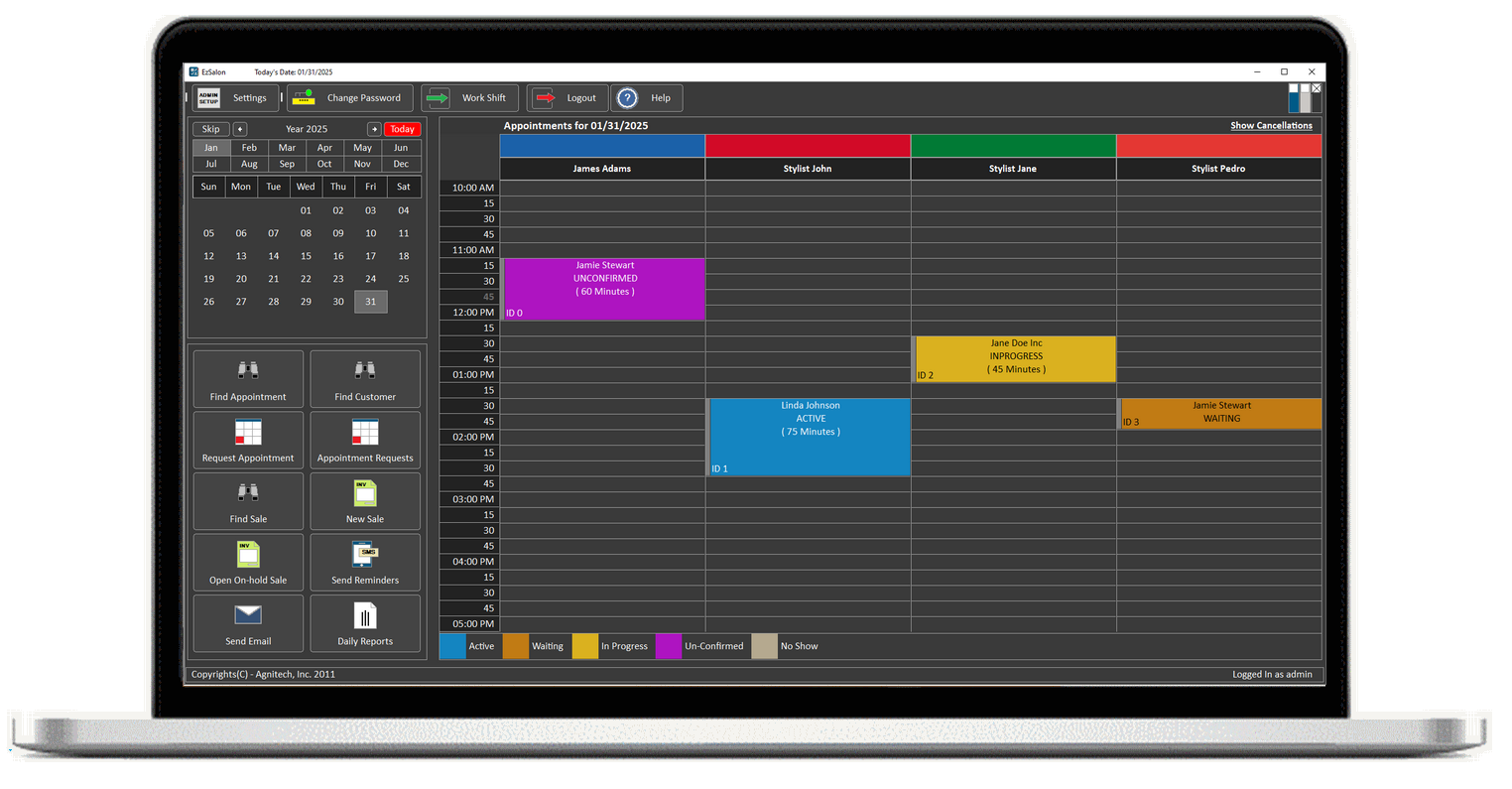
Our Salon and Spa Software is a comprehensive solution designed to streamline and automate the operations of beauty salons and spas. It offers a variety of features that enhance client management, optimize staff performance, and improve business efficiency.
This software simplifies daily tasks, reduces human error, and provides powerful insights, allowing salon and spa businesses to focus on growth and delivering exceptional customer experiences.
Salon appointment software for beauty salons, spas, and tattoo shops

Important: By purchasing this software, you certify that you have read and agree to the terms of this License Agreement.
Key Features:
1. Online Appointment Booking:
Enable clients to book appointments anytime, anywhere. With an easy-to-use online booking system, customers can view available time slots, select services, and confirm their appointments without needing to call or email.
2. Staff Management:
Assign appointments to specific staff members, view team availability in real time, and easily manage staff schedules. Customize work hours, breaks, and shifts to ensure optimal coverage.
3. Appointment Reminders:
Reduce no-shows and cancellations with automated email and SMS reminders sent to clients before their scheduled appointments. This helps keep your salon on schedule and your clients informed.
4. Calendar Integration:
Powerful Calendar component to easily create, view, update, and cancel appointments. Includes Drag-and-drop functionality for easily moving an appointment to a new date, time, or a different stylist.
5. Client Profiles & History:
Create detailed client profiles that include appointment history, service preferences, and contact information. Personalize the customer experience by remembering their preferred stylist, services, and past treatments.
6. Payment Capture:
Capture payments for sales and services using different payment methods.
7. Reporting & Analytics:
Get insights into your salon’s performance with detailed reports on sales, appointment trends, client retention, and more. Use this data to make informed business decisions and optimize operations.
8. Waitlist & Cancellation Management:
Handle last-minute cancellations by automatically adding clients to your waitlist. If an appointment becomes available, clients can be instantly notified and fill open slots, helping maximize revenue.
9. Customizable Service Menu:
Create a flexible service menu with customizable pricing, durations, and descriptions. You can also bundle services together into packages and offer promotions to attract new clients.
10. Marketing Tools
Promote your salon with built-in marketing features like email campaigns, loyalty programs, and special promotions. Easily send targeted messages to your clients to keep them engaged and coming back.
Jewelry Sales and Repairs Software
Our software is free to download, and can be used free with no obligation for 60 days. After the 60-day trial period, you will be locked out of using the software unless you purchase a license. Go ahead and download it now, you have nothing to lose!
Download a FREE Trial
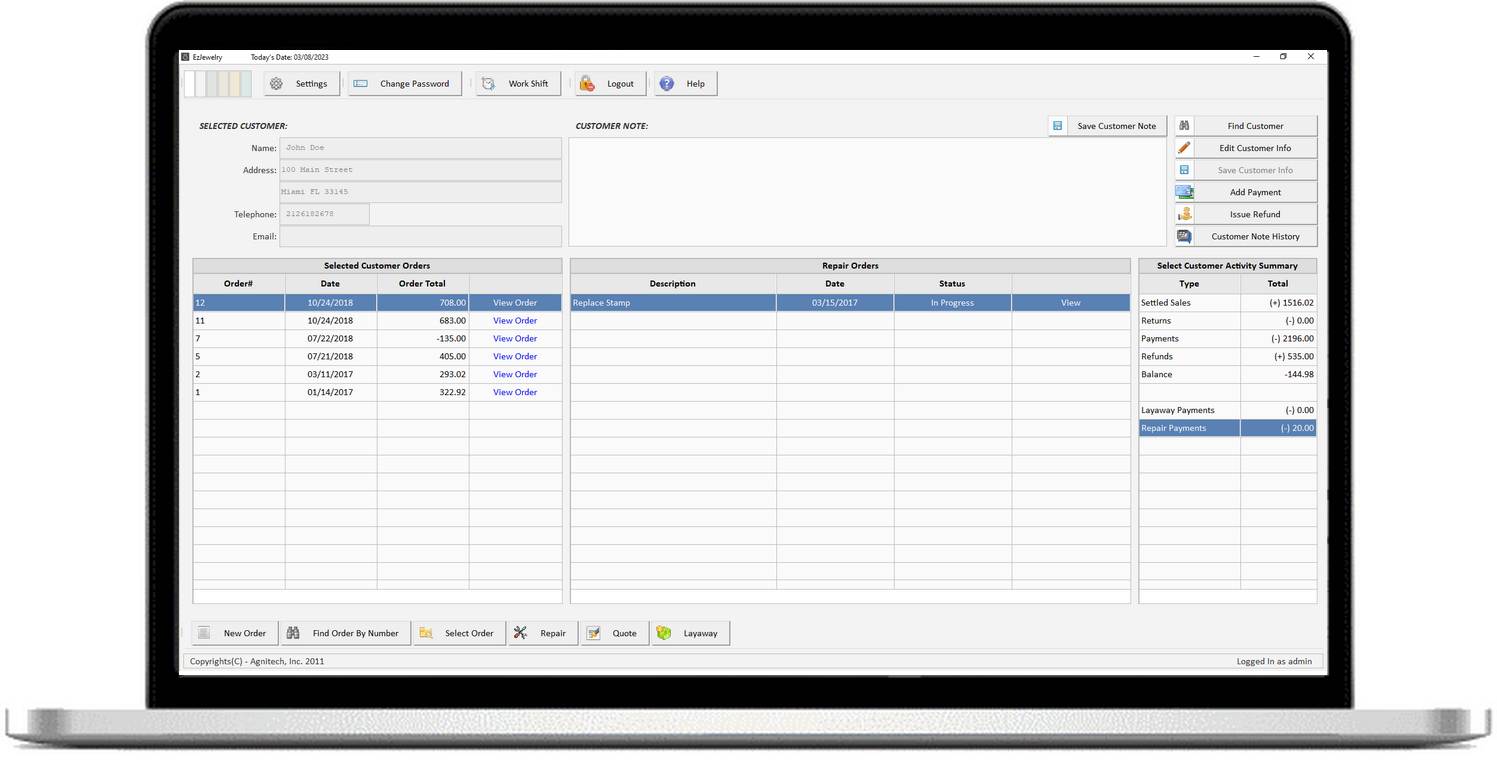
Our Jewelry software is a specialized tool designed to help jewelry businesses streamline their operations, enhance customer experiences, and improve efficiency. It integrates key features to manage inventory, sales, customer relationships, and more, all while offering tailored functionalities for the unique needs of the jewelry industry.
This jewelry software streamlines daily operations, enhances inventory control, and enables personalized customer service, ultimately helping jewelry businesses reduce overhead, improve sales, and grow customer loyalty.
Best Jewelry Store Management Software: Jewelry Software for managing jewelry sales and repairs stores
Important: By purchasing this software, you certify that you have read and agree to the terms of this License Agreement.
Key Features:
1. Inventory Management:
Track your jewelry inventory with precision, including diamonds, precious metals, gemstones, and custom pieces. Easily manage stock levels, update product details, and monitor supplier deliveries. Real-time inventory updates ensure you never lose track of valuable items, minimizing shrinkage and stockouts.
2. Point of Sale (POS) System:
Process sales transactions quickly and securely with an intuitive POS system designed for jewelry stores. Handle complex pricing structures, including discounts, taxes, and commissions. Integrate seamlessly with your inventory to update stock in real-time and generate invoices for each sale.
3. Client Management:
Build strong customer relationships with our client management system. Store detailed profiles for each customer, including purchase history, preferences, and important dates like anniversaries or birthdays. Use this information to offer personalized recommendations, send loyalty rewards, or run targeted marketing campaigns.
4. Sales Reporting & Analytics:
Track sales performance across different product categories, and sales associates. Generate reports on revenue, profit margins, best-selling products, and more. Use these insights to identify trends, optimize inventory, and make data-driven decisions to grow your business.
5. Repair & Service Management:
Easily manage jewelry repairs and services. Track each piece’s service history, including repairs, cleaning, and sizing. Notify customers when their jewelry is ready for pickup and maintain a transparent process for clients seeking repairs or adjustments.
6. Security & Loss Prevention:
Ensure the safety of your valuable inventory with security features like item tracking, audit trails, and role-based access. Set permissions for staff members to limit access to sensitive data, monitor transactions, and prevent theft or errors in stock management.
7. Promotions and Marketing:
Increase customer retention with built-in feature to create promotions. Easily generate marketing campaigns and send these campaign materials by email and SMS to targeted customers.
Restaurant POS Software
Our software is free to download, and can be used free with no obligation for 60 days. After the 60-day trial period, you will be locked out of using the software unless you purchase a license. Go ahead and download it now, you have nothing to lose!
Download a FREE Trial
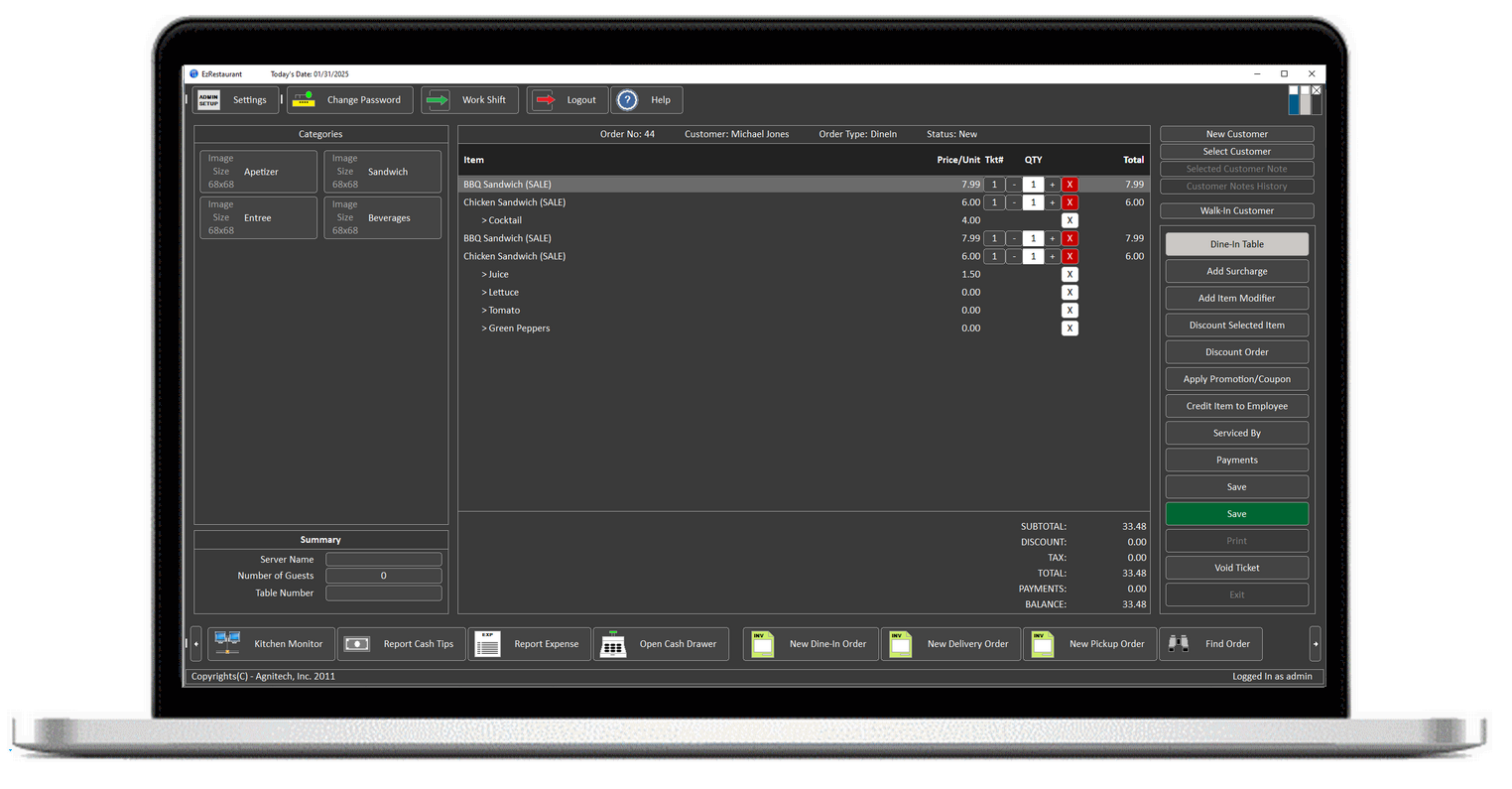
Restaurant Point-of-sale software for managing delivery, diners, and takeout restaurants
Important: By purchasing this software, you certify that you have read and agree to the terms of this License Agreement.
Key Features:
1. Point of Sale (POS) System:
Process orders and payments quickly and securely with our intuitive POS system. The software integrates with your restaurant’s menu and pricing to provide accurate order details, track sales, and streamline checkout. Customize the POS interface for quick access to frequently ordered items, improving the efficiency of your service.
2. Order Management:
Easily manage dine-in, takeout, and delivery orders with real-time updates. Our software automatically sends orders to the kitchen or bar, ensuring that your team is always in the loop. Reduce order errors, track special requests, and guarantee that your food is prepared and served fresh and on time.
3. Inventory Management:
Track your ingredients and supplies with real-time inventory updates. Monitor stock levels, set low-stock alerts, and automate inventory ordering to ensure you never run out of key items. Maintain food cost control by managing waste, portion sizes, and ingredient usage efficiently.
4. Table & Reservation Management:
Manage customer reservations and optimize table allocation to reduce wait times. The system allows your staff can manage reservations and assign tables based on availability.
5. Employee Scheduling & Payroll:
Streamline staff scheduling, track working hours, and simplify payroll management. Our software allows you to create shifts, manage time-off requests, and track overtime. Track payroll payments for your team.
6. Customer Relationship Management (CRM):
Store and access customer profiles, track preferences, and manage loyalty programs. Use customer data to personalize marketing campaigns, create special offers, and improve service. Build strong customer relationships by remembering frequent orders, special occasions, and offering personalized promotions.
7. Reporting & Analytics:
Generate detailed reports on sales, food costs, labor costs, and customer trends. Monitor performance, time of day, or staff member to identify opportunities for improvement. Adjust your menu real-time, and plan for future growth.
8. Loyalty & Promotions:
Generate promotions to encourage customers to return. Use built-in marketing tools to send targeted promotions and exclusive offers to your loyal customers via email or SMS.
Wholesale Distribution Software
Our software is free to download, and can be used free with no obligation for 60 days. After the 60-day trial period, you will be locked out of using the software unless you purchase a license. Go ahead and download it now, you have nothing to lose!
Download a FREE Trial
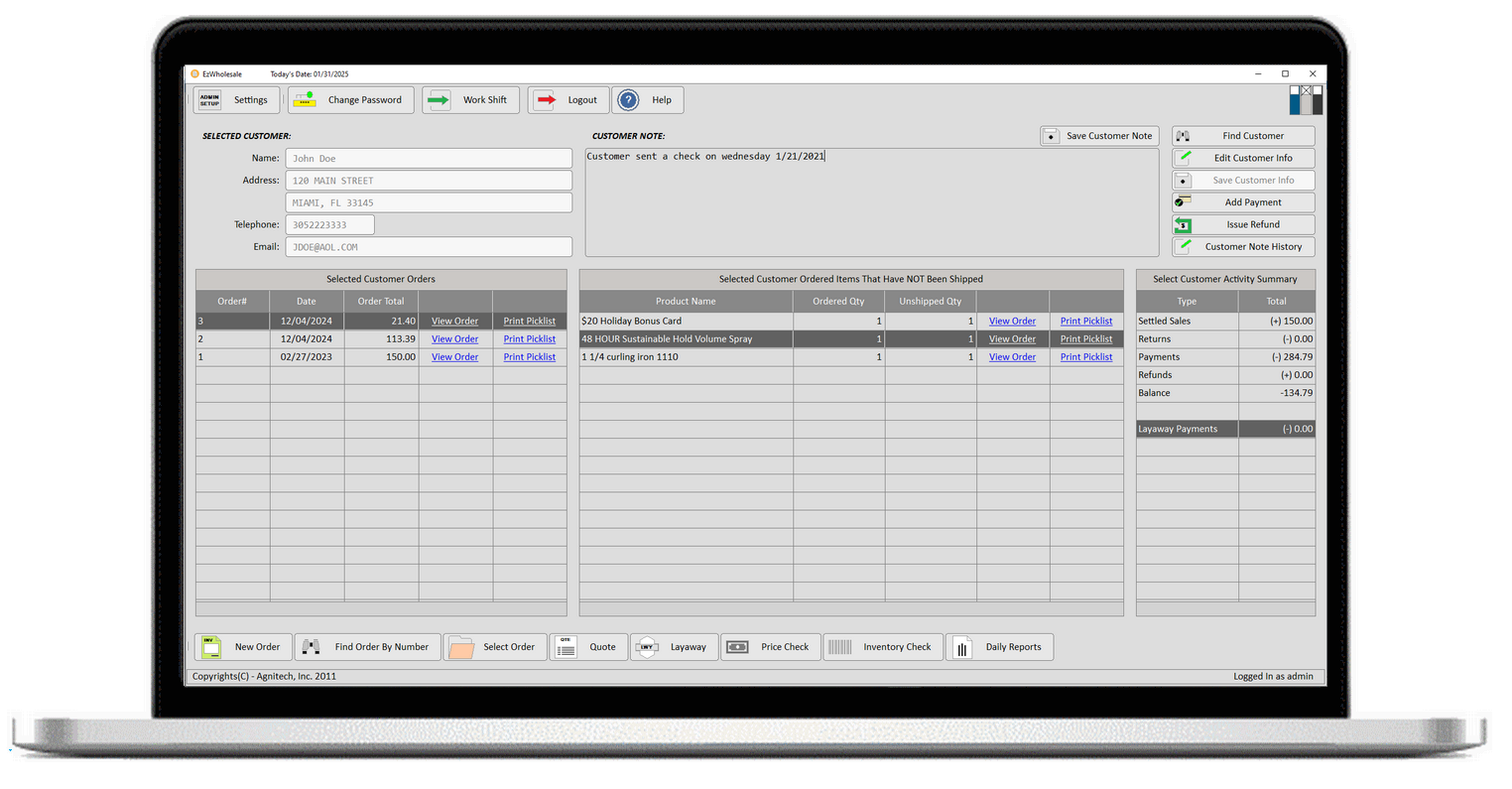
Wholesale business inventory management and tracking software
Important: By purchasing this software, you certify that you have read and agree to the terms of this License Agreement.
Key Features:
1. Real-Time Inventory Tracking:
Stay on top of your stock levels with real-time inventory updates. Automatically update inventory when new stock arrives or when sales orders are fulfilled. With accurate, up-to-the-minute data, you can avoid costly stockouts or overstocking, ensuring your business always operates at peak efficiency.
2. Barcode Scanning & Label Printing:
Easily manage inventory with barcode scanning and label printing. Quickly scan barcodes to add or remove stock, track products, and streamline stock audits. Print customizable barcode labels for your products to improve organization, reduce human error, and speed up warehouse operations.
3. Supplier & Purchase Order Management:
Efficiently manage suppliers, purchase orders, and incoming stock. Track your orders with detailed supplier information, including expected delivery dates, prices, and terms. Automate reorder levels based on preset thresholds to ensure you never run out of key products and can easily place new orders with suppliers.
4. Custom Pricing & Discount Structures:
Manage complex pricing structures for different customer types, regions, or order volumes. Set tiered pricing, quantity discounts, and promotional pricing based on customer agreements or contracts. This flexibility ensures you can offer competitive pricing while maintaining profitability.
5. Sales & Order Management:
Process and manage wholesale orders with ease. Track the status of orders, monitor backorders, and generate invoices or packing slips automatically. With built-in sales tracking, you can analyze sales trends, identify top-selling products, and optimize your order fulfillment process.
6. Automated Stock Replenishment:
Keep your inventory levels balanced with stock replenishment. Based on sales trends, seasonality, and predefined reorder levels, the software will automatically suggest or create purchase orders to restock items before they run out, keeping your supply chain smooth and efficient.
7. Reporting & Analytics:
Get actionable insights into your wholesale operations with comprehensive reports. Track sales performance, monitor stock levels, calculate margins, and analyze inventory turnover. Customizable reports allow you to drill down into specific data points to make informed decisions and optimize your business processes.
8. Batch & Serial Number Tracking:
For products that require more detailed tracking (e.g., electronics, pharmaceuticals, or luxury goods), our software offers serial number tracking. Monitor the entire lifecycle of each product, from receipt to sale, or returns with ease.
9. Returns & RMA Management:
Efficiently handle product returns. Track reasons for returns, initiate refunds or replacements, and maintain a detailed history of returns to identify trends and improve product quality or fulfillment processes.
Gas Station Backoffice Software
Our software is free to download, and can be used free with no obligation for 60 days. After the 60-day trial period, you will be locked out of using the software unless you purchase a license. Go ahead and download it now, you have nothing to lose!
Download a FREE Trial
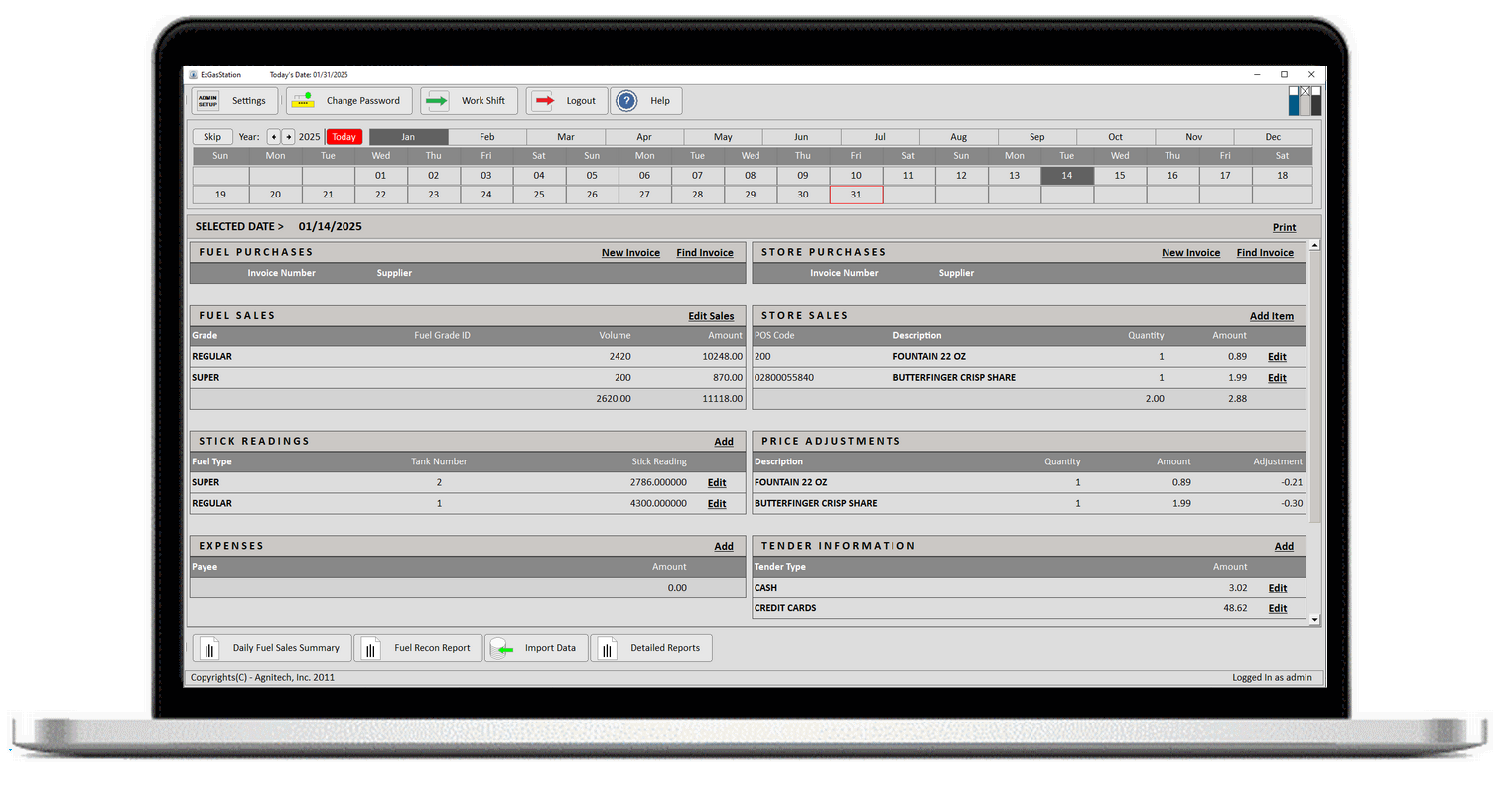
Gas Station Sales and Inventory Tracking Software for the back-office
Important: By purchasing this software, you certify that you have read and agree to the terms of this License Agreement.
Key Features:
1. Fuel Inventory Tracking:
Track fuel sales, fuel purchases, store sales and store purchases, payments to vendor and others, income by different currency types, assets, and more.
2. Sales Tracking & Reporting:
Track fuel and convenience store sales separately, with detailed daily, weekly, and monthly reports. Our system provides insights into sales trends, profit margins, and best-selling products. Generate reports that help you evaluate performance and make informed business decisions.
3. Fuel Price Tracking:
Keep track of fuel prices at various stages and dates, which gives you insight into how the fuel prices changed over time.
4. Employee Management & Payroll:
Simplify employee scheduling, time tracking, and keep track of payroll records. Our software allows you to track employee schedules, manage overtime, and calculate wages based on work hours.
5. Accounting & Financial Reporting:
Track your gas station’s finances with built-in reports that details all activity by any range of dates. Track revenue, expenses, sales, and purchases in real time.
6. Tank Monitoring & Fuel Analytics:
Monitor fuel levels and any discrepancies or irregularities. Our system generates a fuel reconciliation report for any range of dates, this report will give you insight into possible issues with tank leaks, fuel inventory losses, and more.
7. Compliance & Regulatory Reporting:
Our software helps you stay compliant with industry regulations and local authorities by providing you with audit reports that show detailed information about your business, which you can have have readily available for inspections and other government requirements.
8. Vendor & Supplier Management:
Track and manage vendor information, purchase orders, and deliveries. Our software helps you monitor supplier contracts, keep track of invoices, and ensure timely payments for fuel deliveries and inventory restocks.
Retail Point-of-Sale Software
Our software is free to download, and can be used free with no obligation for 60 days. After the 60-day trial period, you will be locked out of using the software unless you purchase a license. Go ahead and download it now, you have nothing to lose!
Download a FREE Trial
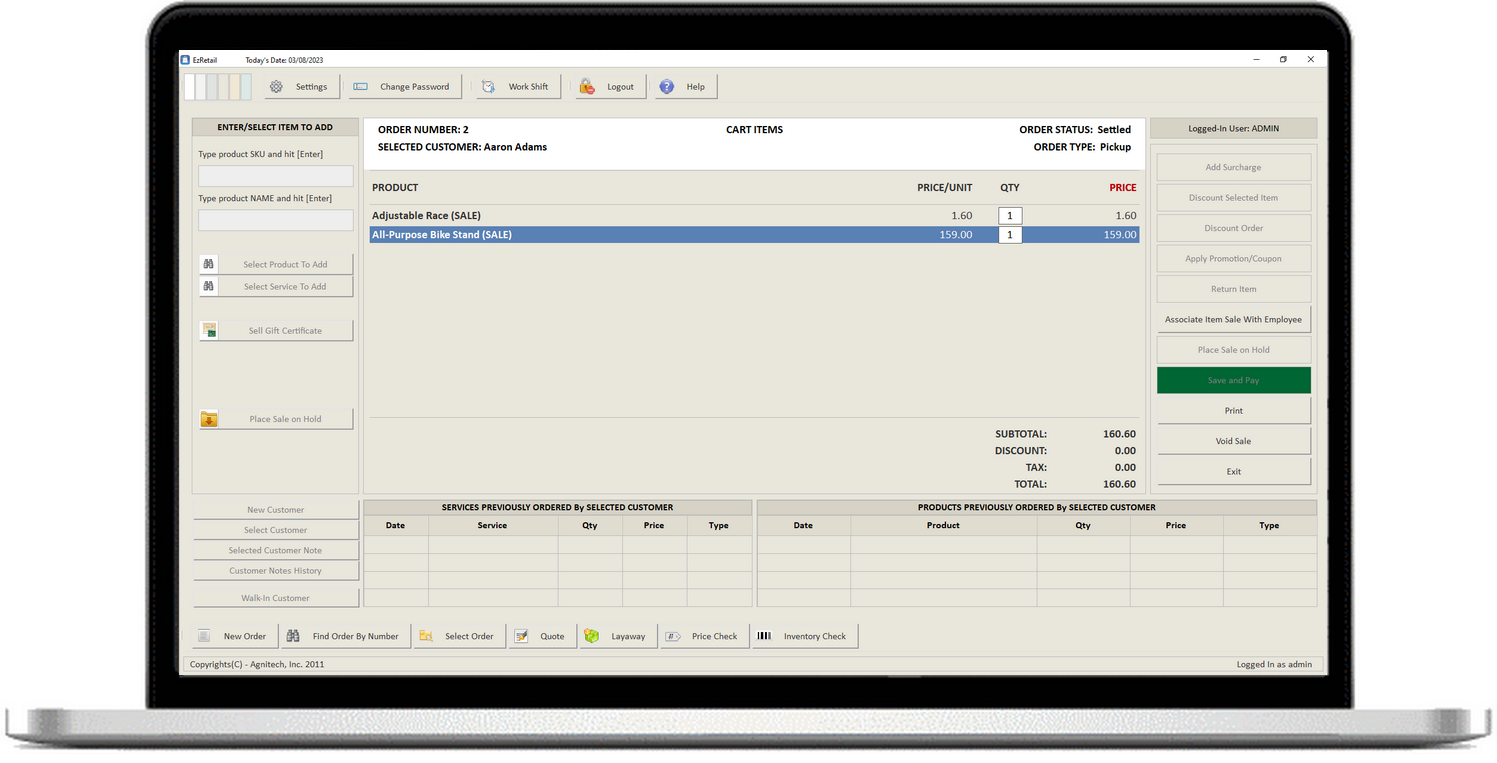
Retail Point-of-sale software for small businesses and shops
Important: By purchasing this software, you certify that you have read and agree to the terms of this License Agreement.
Key Features:
1. Intuitive Point-of-Sale (POS) System:
Speed up transactions with a fast, user-friendly POS interface. Whether you’re processing cash, credit cards, mobile payments, or gift cards, our software supports multiple payment methods to accommodate every customer. The intuitive layout ensures quick training for your staff and seamless customer interactions.
2. Inventory Management:
Track stock levels in real time, automatically update inventory with each sale, and receive alerts when items are low. Our software enables you to organize products by categories, brands, and suppliers, and offers features like barcode scanning for easy product look-up and check-out.
3. Customer Management (CRM):
Store customer profiles, track purchase history, and gather insights into customer preferences. Use this information to personalize the shopping experience, create loyalty programs, and send targeted marketing campaigns. Build long-term relationships by remembering key details like birthdays or special occasions.
4. Sales Reporting & Analytics:
Monitor sales performance across different locations, product categories, and time periods. Our software provides detailed reporting and real-time analytics, helping you identify trends, track sales growth, and optimize pricing strategies. You can generate customizable reports on revenue, profit margins, inventory turnover, and more.
5. Employee Management & Time Clock:
Manage employee schedules, track hours worked, and oversee commissions or sales performance. Set up different access levels to ensure that employees can only access relevant features. With built-in time clock functionality, employees can clock in and out easily, simplifying entry of payroll payments.
6. Discounts & Promotions:
Easily apply discounts and promotional offers at the point of sale. Our software supports a variety of discount types, including percentage discounts, fixed amount discounts, and promotion codes. Track promotions to measure their effectiveness and adjust them based on customer behavior or sales data.
7. Payment Entry:
Accepts payments by any method, you can configure the payment methods that your business accepts, and those payment methods are made available at the time of payment entry.
8. Promotions & Discounts:
Encourage repeat business with customizable loyalty programs. Offer rewards, discounts, or exclusive deals for repeat customers based on their purchase history.
9. Barcode Scanning & Label Printing:
Integrate barcode scanning to streamline the checkout process, reducing wait times and human error. Our system supports easy barcode label printing for products, helping you organize your store and ensure quick, accurate checkout transactions.
Mobile Store POS Software
Our software is free to download, and can be used free with no obligation for 60 days. After the 60-day trial period, you will be locked out of using the software unless you purchase a license. Go ahead and download it now, you have nothing to lose!
Download a FREE Trial
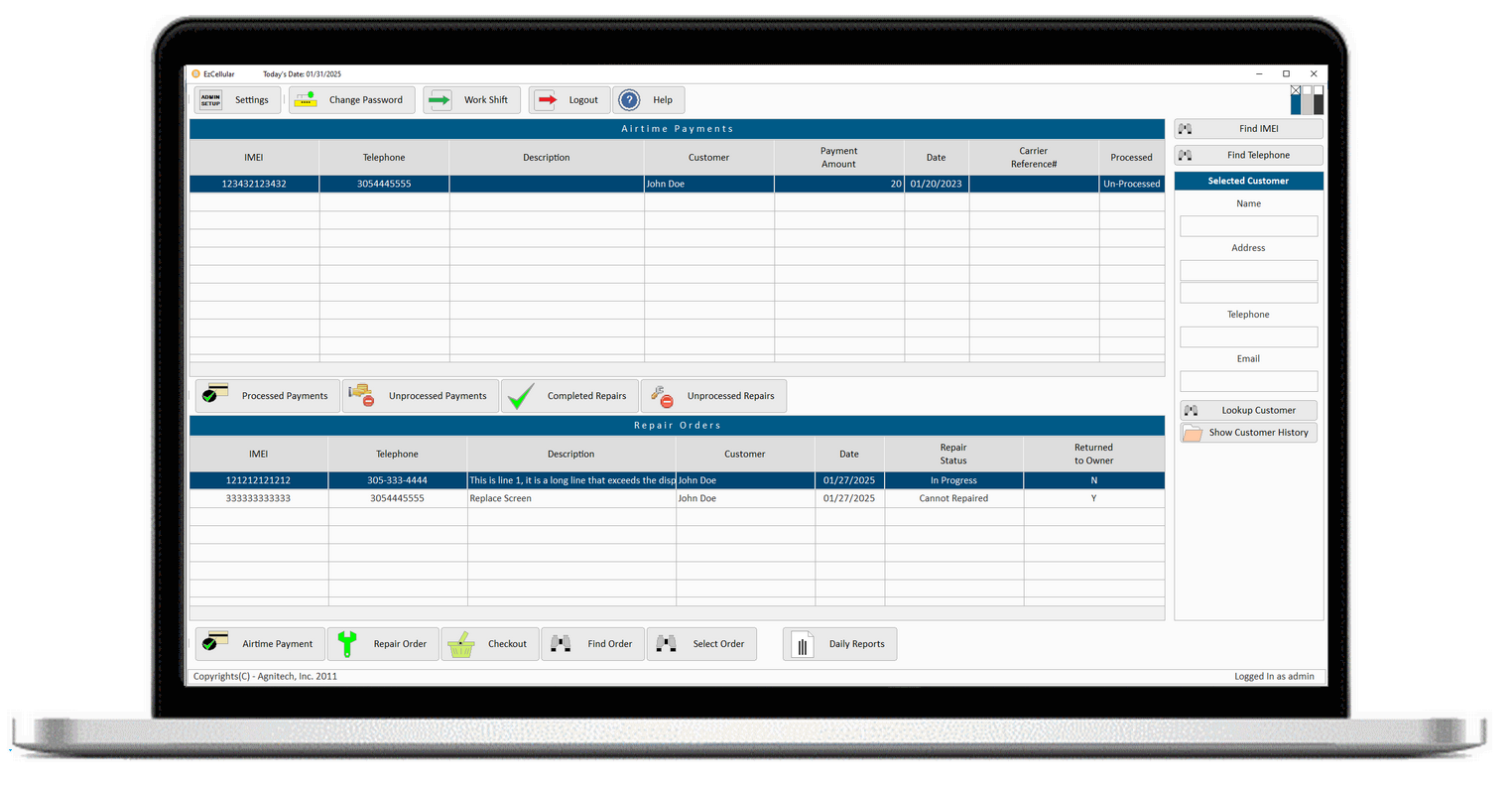
Sales and Repairs tracking software for Mobile Phone Stores and business
Important: By purchasing this software, you certify that you have read and agree to the terms of this License Agreement.
Key Features:
1. Inventory Management:
Effortlessly manage your stock of mobile phones, accessories, and related products. Track product quantities, set low-stock alerts, and receive real-time updates on your inventory levels. Our system ensures that you never run out of popular items and helps you maintain an organized stockroom.
2. Point of Sale (POS) System:
Process sales quickly and securely with an intuitive POS interface. Our system integrates seamlessly with your inventory, updating stock levels in real time as you complete transactions. Accept payments via various methods, including credit cards, mobile payments, and cash.
3. Repair Management:
Offer repair services for phones, tablets, and other devices? Manage repair orders, track the status of each repair, and notify customers when their devices are ready for pickup. You can also log repair details, parts used, and technician assignments directly within the system.
4. Customer Management:
Create and maintain detailed customer profiles, including contact details, purchase history, repair requests, and loyalty program status. Use this information to enhance customer relationships, offer personalized promotions, and improve sales strategies.
5. Sales Reporting & Analytics:
Track sales performance, monitor trends, and gain insights into your store's best-selling products and services. Generate reports on sales, revenue, inventory turnover, and customer purchasing behavior to make data-driven decisions and optimize store operations.
6. Accept air-time payments:
If your business allows customer to make air-time or pre-paid service payments in advance, our software allows you to accept those payments and keeps track of those payments so you can transfer the money to the appropriate carriers
7. Warranty & Service Tracking:
Keep track of warranty information for phones and accessories sold in your store. The system records warranty start and end dates, service claims, and the status of each product’s warranty period to avoid confusion and ensure smooth service for customers.
8. Employee Management:
Track employee hours, performance, and commissions with built-in employee management features. You can assign roles, monitor sales targets, and manage shifts or time-off requests, making scheduling a breeze.
11. Promotions and Discounts:
Create discounts, and promotions. Send automated emails and SMS to clients and prospective clients to attract more customers and generate more sales.
Rental Tracking POS Software
Our software is free to download, and can be used free with no obligation for 60 days. After the 60-day trial period, you will be locked out of using the software unless you purchase a license. Go ahead and download it now, you have nothing to lose!
Download a FREE Trial
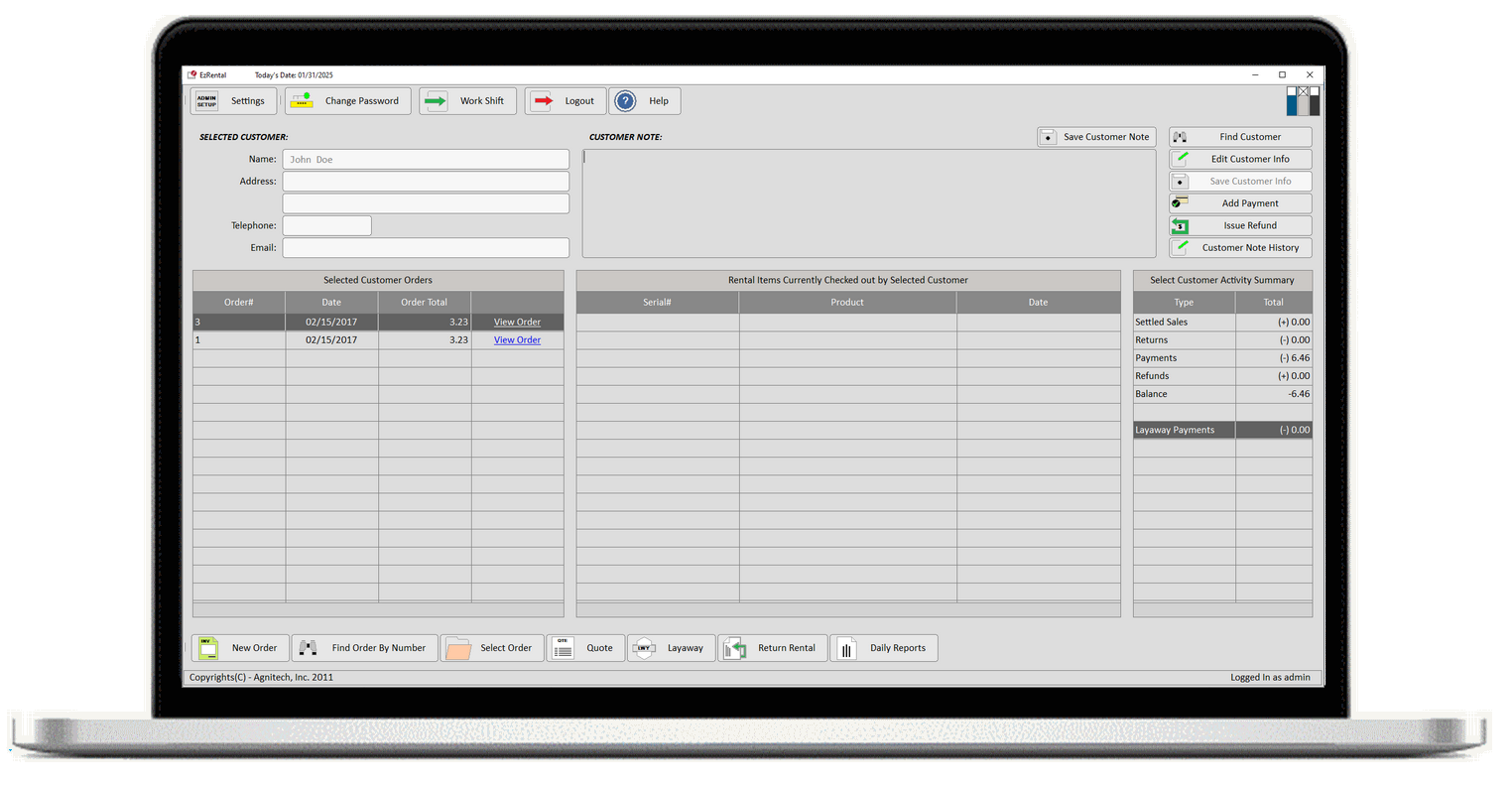
Rental and Sales Tracking Software for Game Stores, Video Rental, and other businesses that rental products.
Important: By purchasing this software, you certify that you have read and agree to the terms of this License Agreement.
Key Features:
1. Inventory Management:
Keep track of all your rental assets in one place. Manage inventory levels, monitor asset conditions, and track maintenance schedules to ensure everything is in top condition. Set up asset categories, manage pricing for different rental durations, and assign availability statuses to prevent overbooking.
2. Booking & Reservation Management:
Our software offers an intuitive booking system that enables you to make reservations, manage rental schedules, and track item availability in real time. You can also set up discounts, promotions, and rental duration options.
3. Customer Management (CRM):
Store customer profiles, track rental history, and manage preferences with ease. Send reminders for upcoming bookings, late returns, or maintenance appointments. Use the CRM features to segment customers for personalized marketing, loyalty rewards, or follow-up communication.
4. Payment & Billing Integration:
Process payments by different payment methods. Accept deposits, full payments, or installment plans based on your rental terms. The software also generates invoices, receipts, and payment history for clients, simplifying your financial operations.
5. Rental Agreements & Contracts:
Create and manage rental contracts directly within the system by creating customer terms.
6. Reporting & Analytics:
Generate detailed reports on your rental business’s performance, including rental trends, revenue, asset utilization, and customer demographics. Our reporting tools help you identify which assets are most in demand, track profit margins, and optimize inventory to increase profitability.
7. Late Fee & Damage Tracking:
Automatically calculate late fees for overdue rentals and track any damage or loss during the rental period. Generate invoices for additional charges, simplifying the billing process and ensuring that clients are held accountable for overdue or damaged assets.
8. Marketing & Promotions:
Leverage built-in marketing tools to attract new customers and keep existing ones coming back. Create special promotions, loyalty programs, or automated email campaigns.